Getting started
with the app.
In a few minutes you can create an account, book your trial class and turn on phone notifications. It all works in your browser, so there is nothing to download from the app store.
Open the appCreate an account
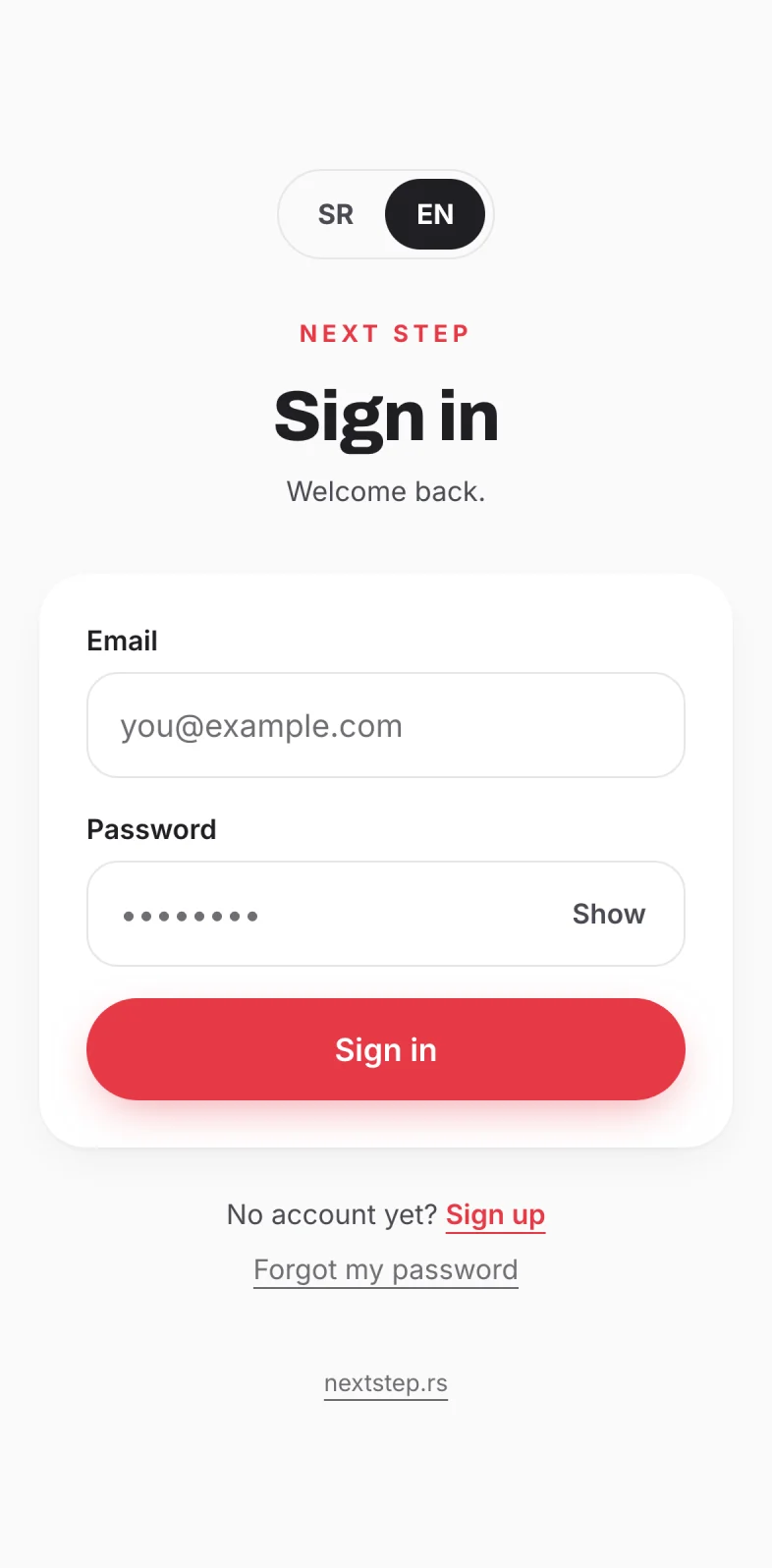
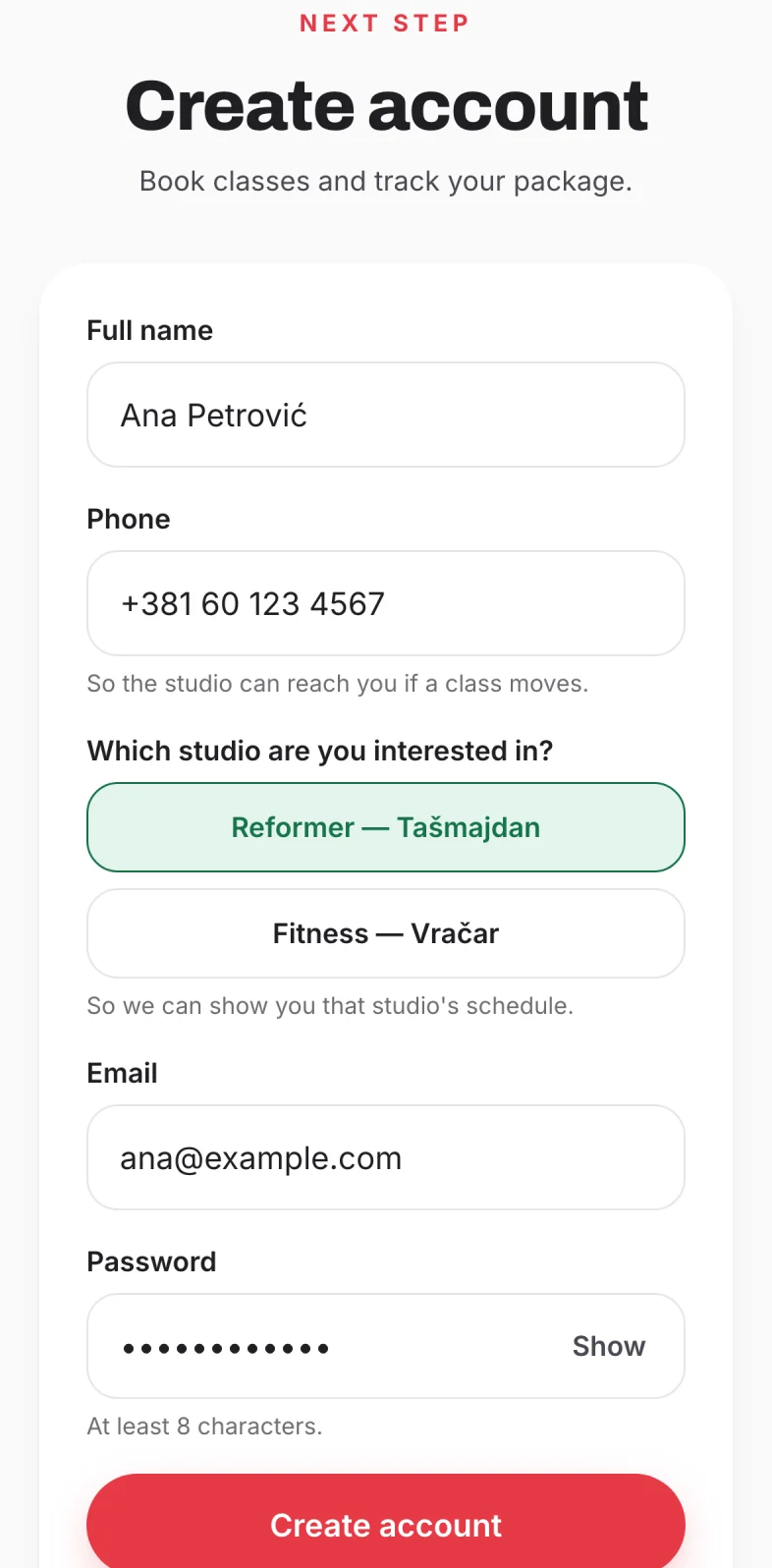
Open nextstep.rs/app in Safari (iPhone) or Chrome (Android). You create the account once, after that you just sign in.
Book your trial class
Every new account comes with one trial class. Right after you sign up, the schedule for your studio opens.
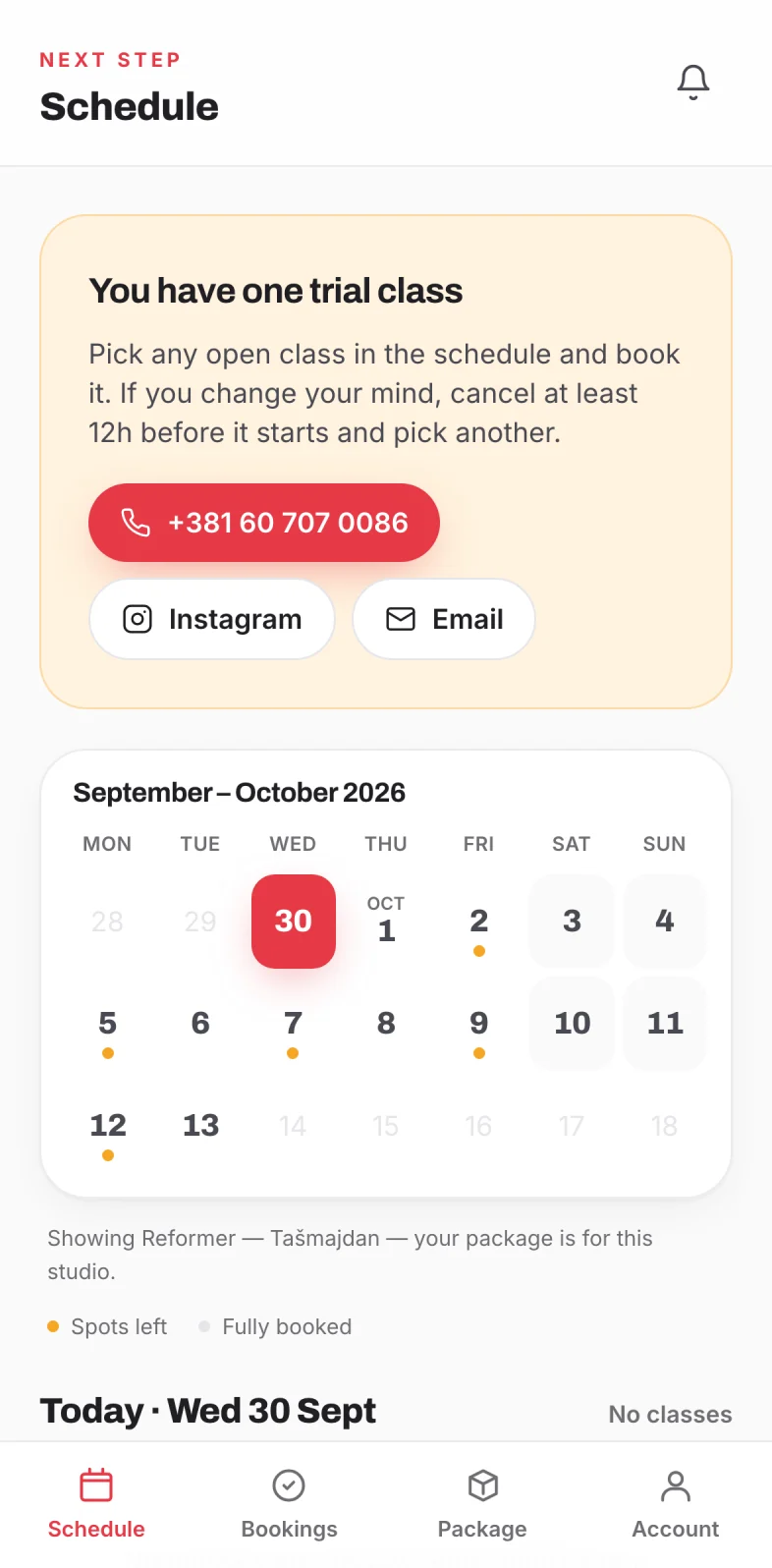
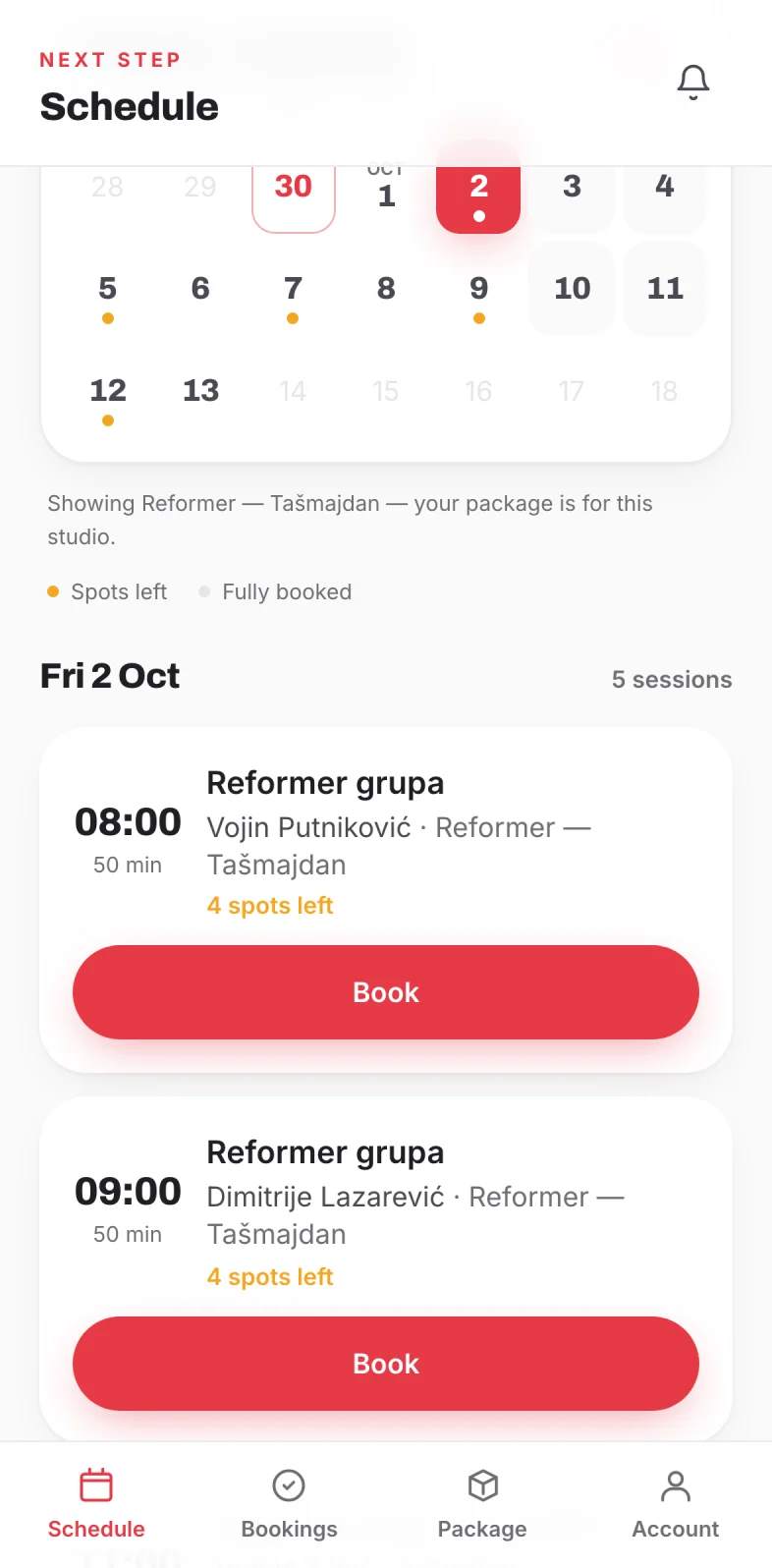
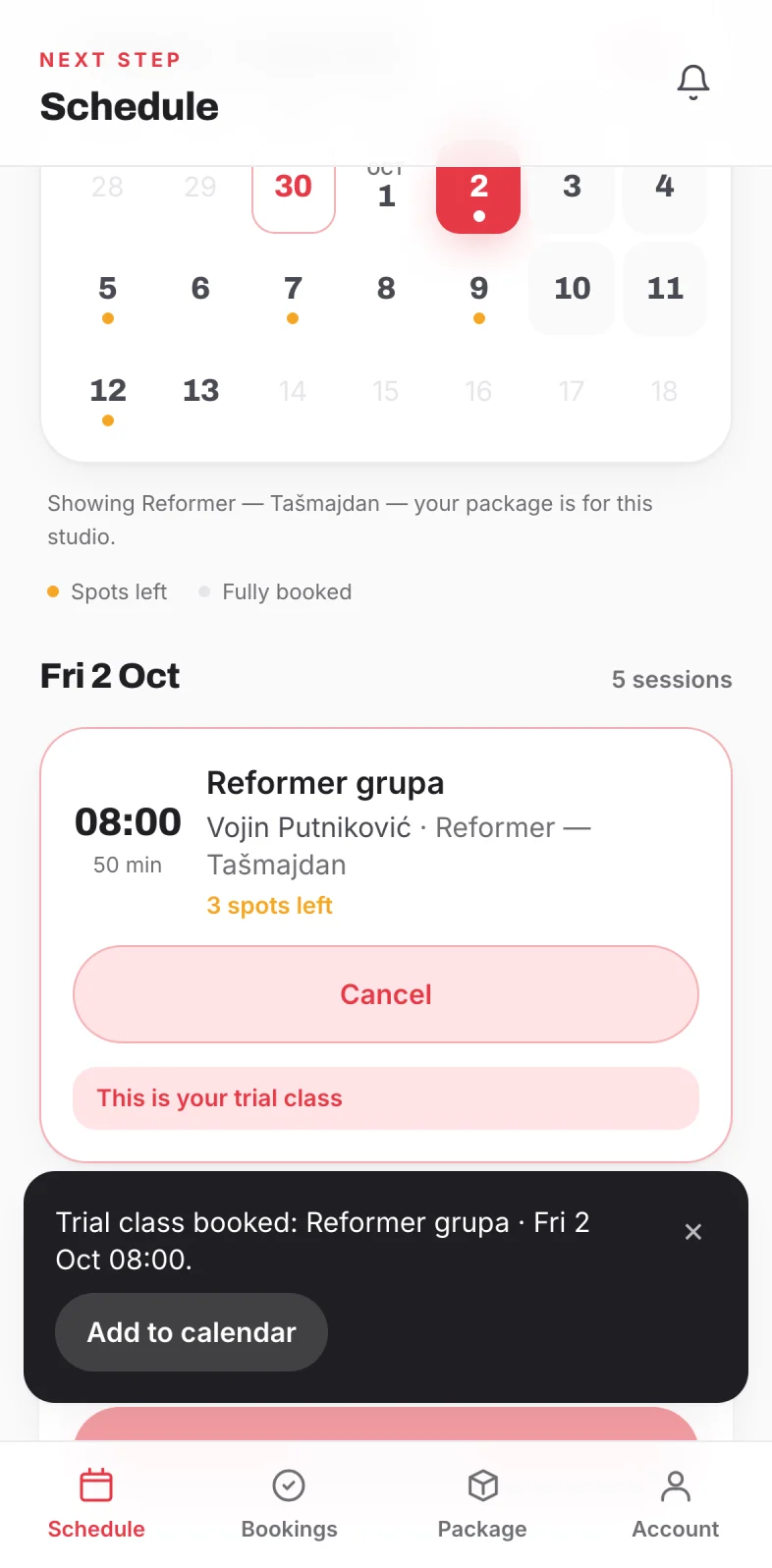
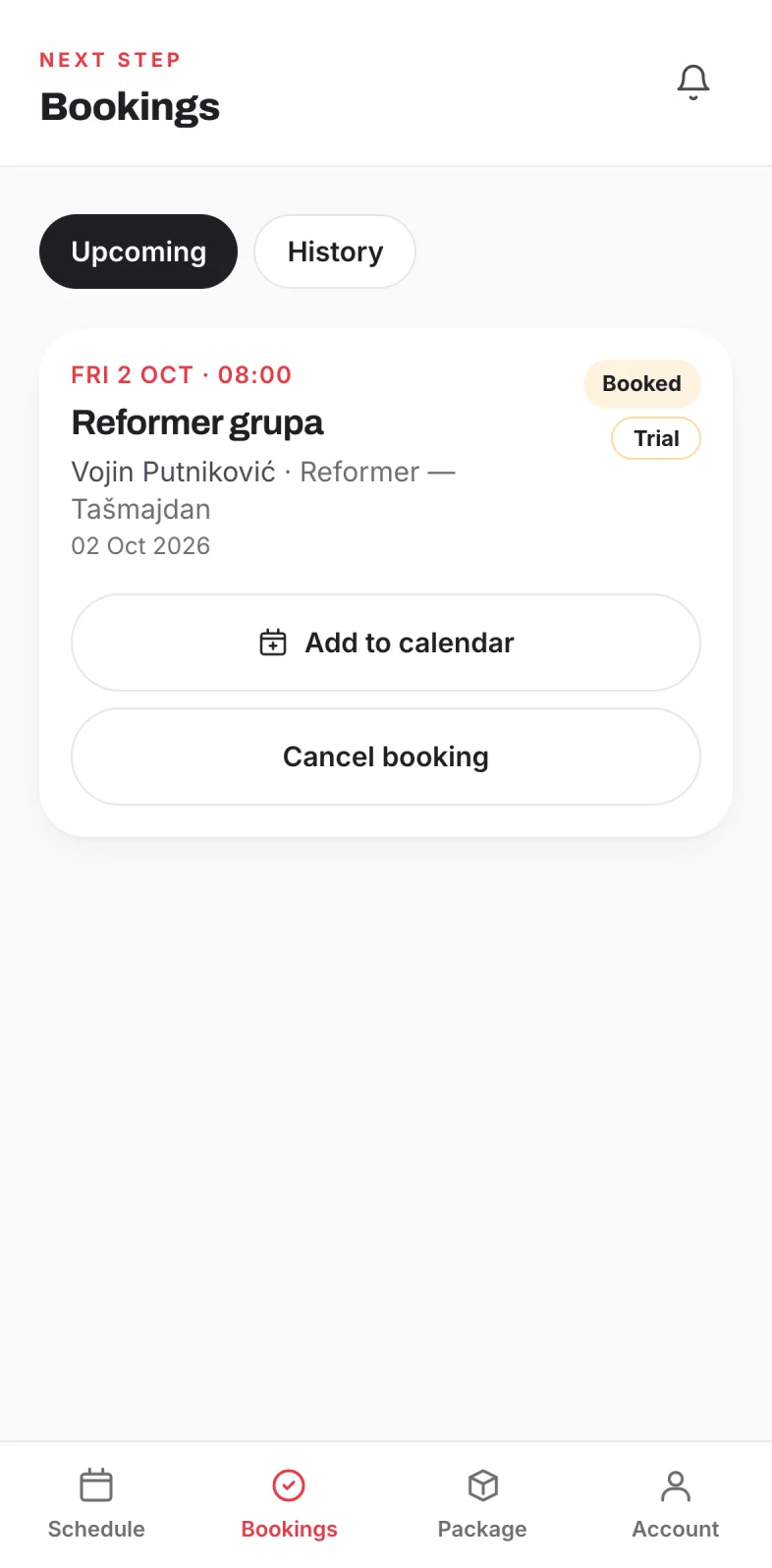
Changed your mind? Cancel at least 12 hours before the class starts and your trial class comes back, so you can pick another one. For more classes, the studio gives you a package.
Add the app to your home screen
Next Step then opens like a real app, with one tap. On iPhone you need this step for notifications to work.
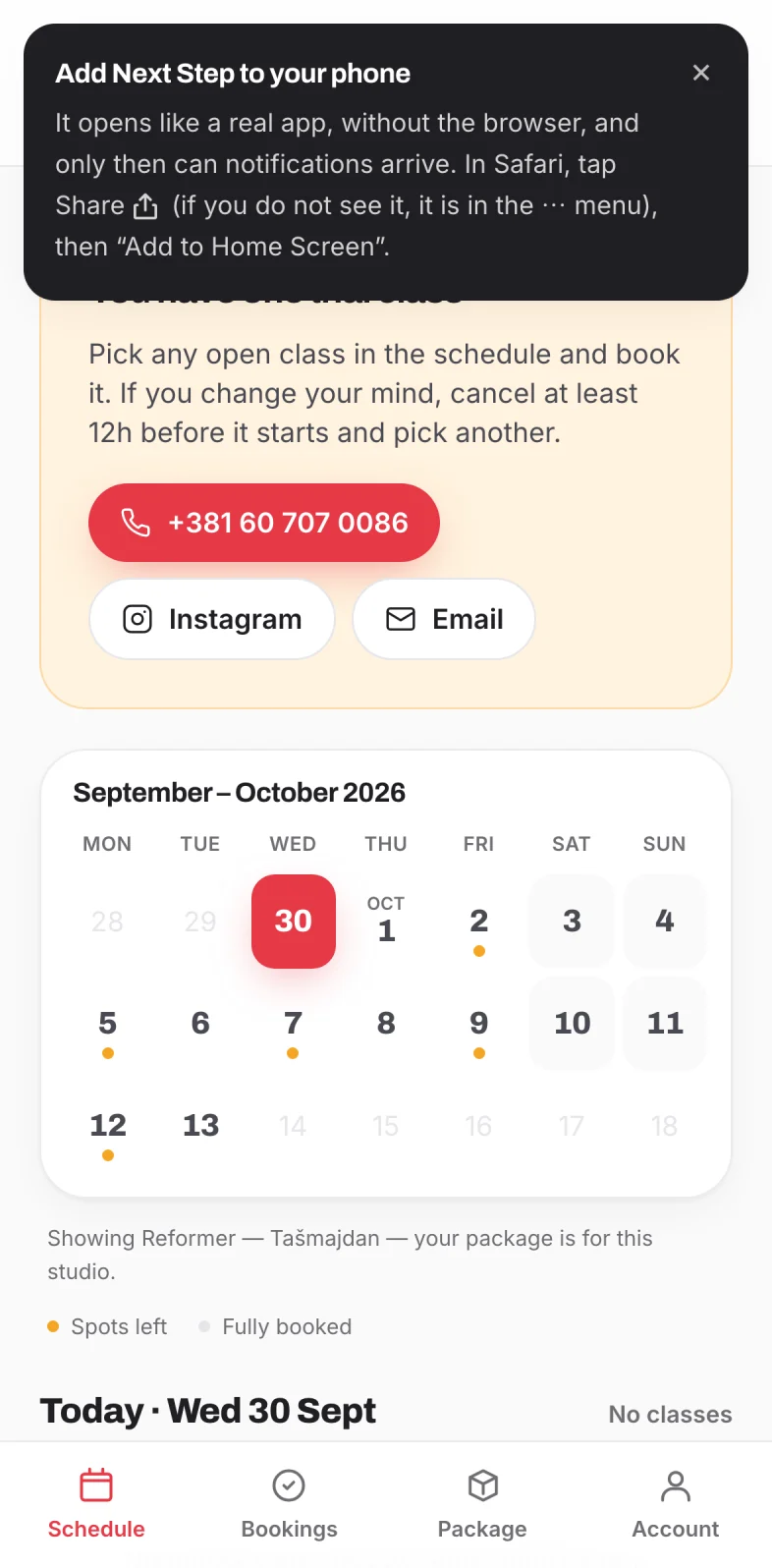
iPhone (Safari)
Tap Share (the square with an arrow pointing up, at the bottom of the screen or in the ⋯ menu), then “Add to Home Screen” → Add.
Android (Chrome)
Menu ⋮ at the top right → “Install app” or “Add to Home screen”.
From now on, open Next Step from the new icon. You stay signed in.
Turn on notifications
Your phone lets you know when the studio gives you a package, when a class is cancelled, and the day before your class, even when the app is closed.
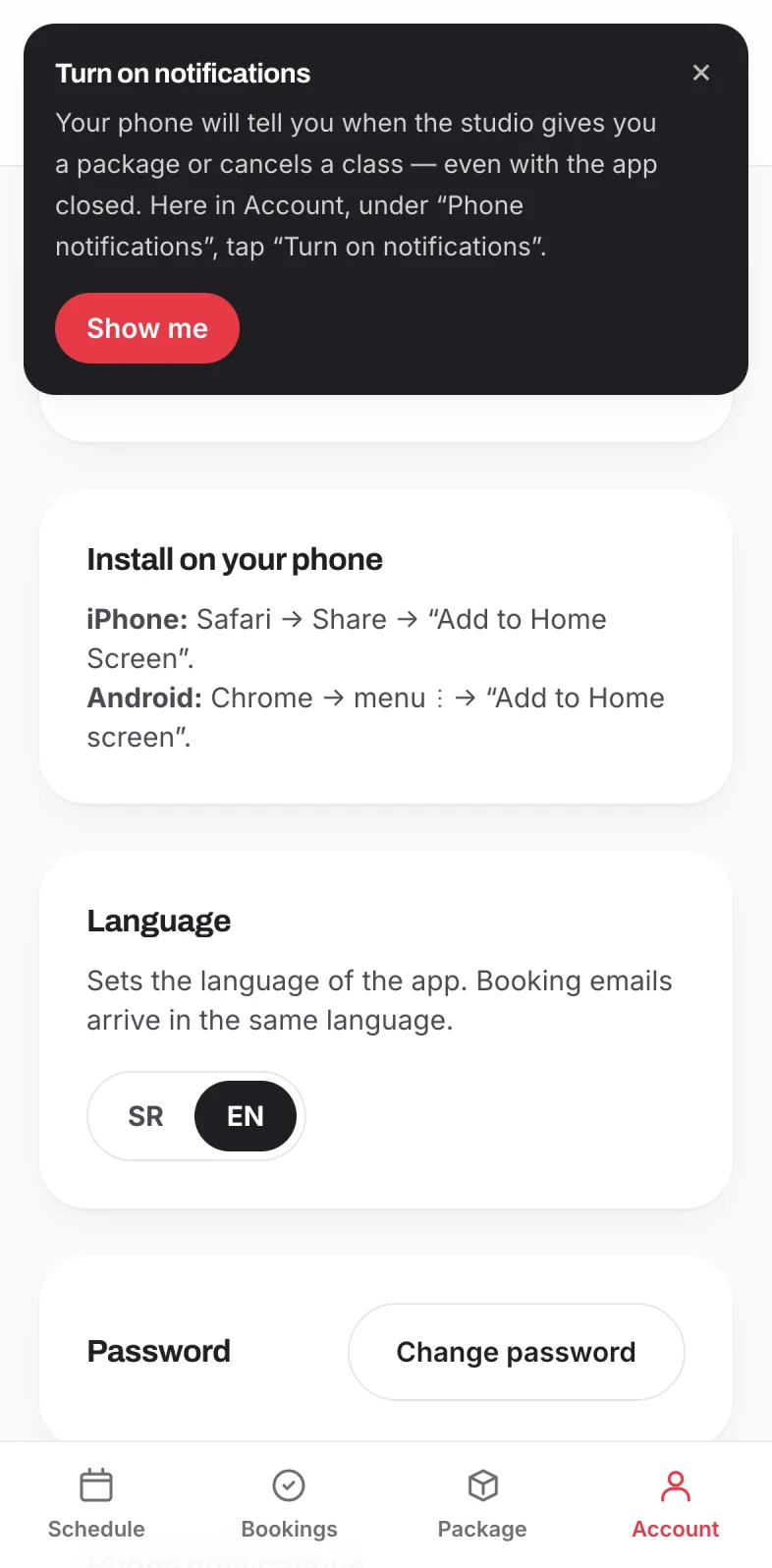
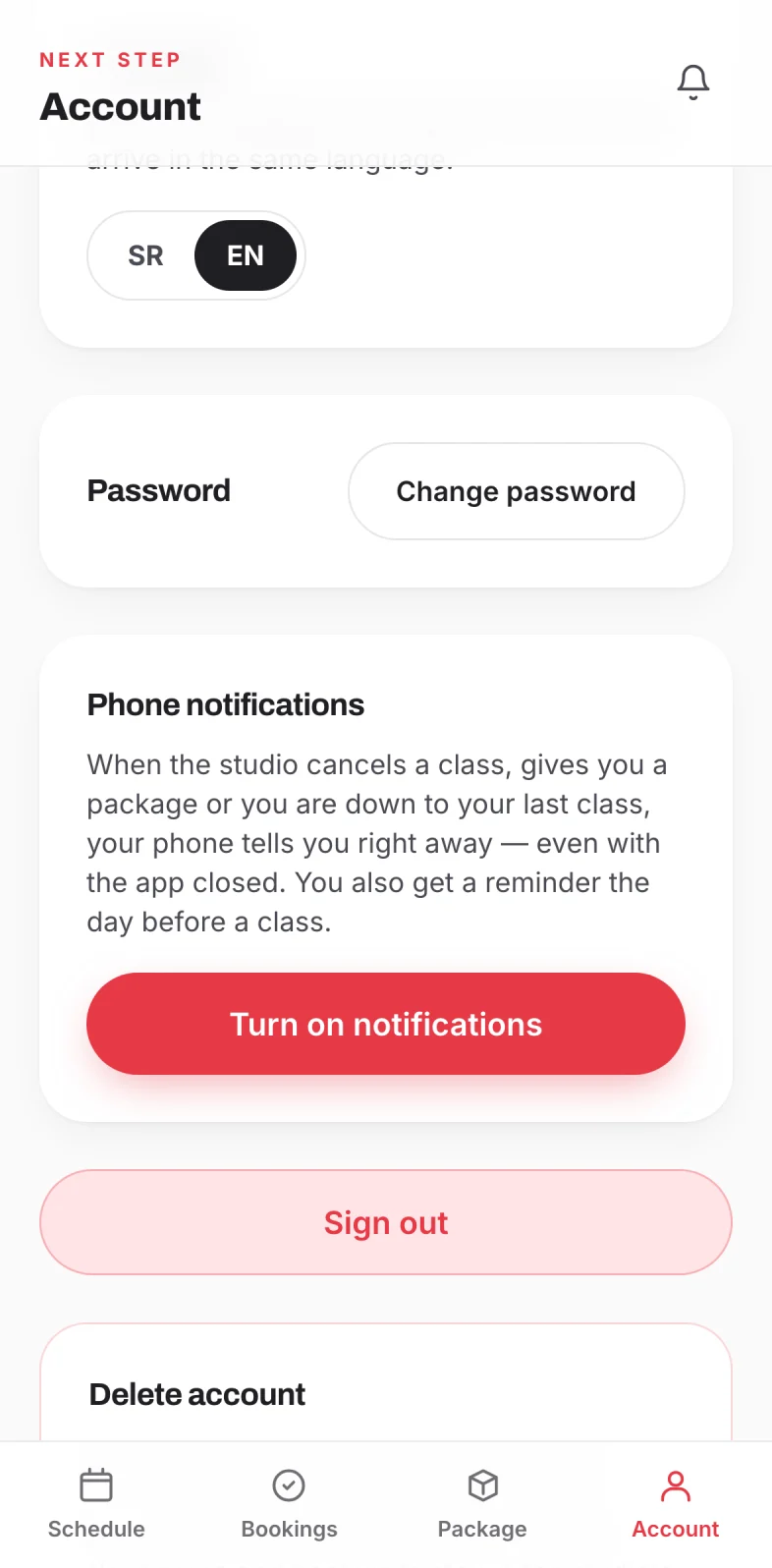
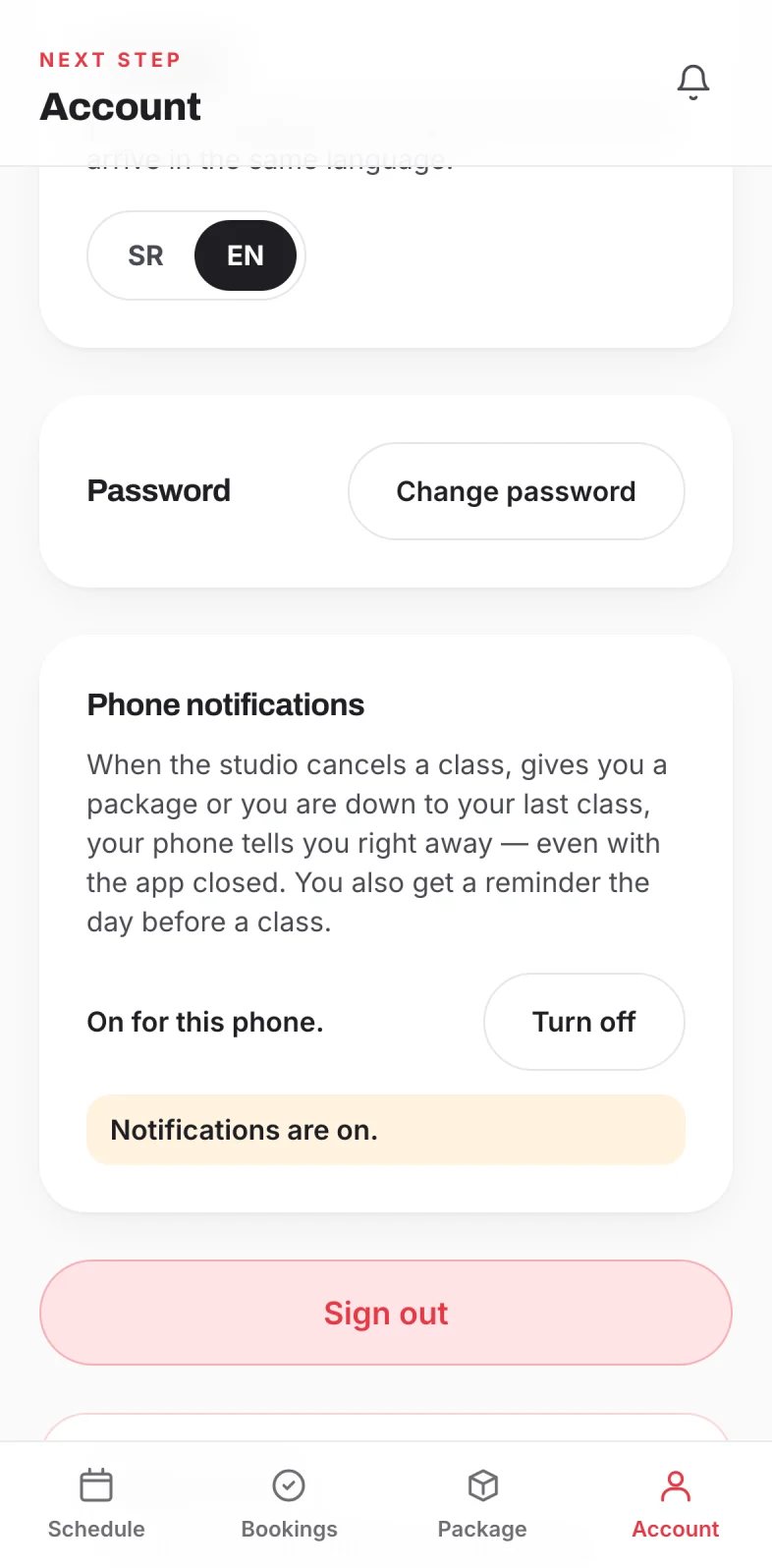
No button on your iPhone? Then the app is open in Safari. Go back to step 3, add the app to your home screen and open it from the icon.
That is it. See you in class.
- Bookings: all your upcoming classes, with a button to cancel.
- Package: how many classes you have left and when your package expires.
- The bell: at the top right, every message from the studio in one place.
Stuck somewhere? Call us on +381 60 707 0086